Showing posts with label INTERNET. Show all posts

Gagababa (ががばば) - Scary thing to search in Yahoo Japan

Filled under: ,


STEP 1.  :
open Yahoo japan.

STEP 2:
Type or copy   ががばば and paste  into the search bar and hit enter . it is the japanese translation of the word 'Gagababa'.

STEP 3:
Ignore warning as shown in Pic by clicking the option in red circle :  Wait and  lets see what will happen.

(if u r not able to copy ががばば this word from this blog then right click on this word and select inspect element and copy from there )


Posted By Krribss01:57

Whatsapp Hack

Filled under: ,


On Daily we have heard news about online services is suffering from a lack of security. In February WhatsApp has been down for nearly four hours, as if this were not enough, people became aware of the security flaw that allows conversations that should be read by anyone provided it learn properly perform the procedures.


Steps to follow:
1 - First of all you need to have the device at hand, use the Social Engineering and be quick in getting the e-mail and backup files msgstore-2014-05-02.1.db.crypt5.
To get the email for this follow the procedures below.


Enter the Play Store and view the e-mail, or write down mentalize somewhere without the person noticing.


Now Go to the device settings from Settings -> Accounts & Sync, look for the email from Google and mentalize or write down somewhere without the person noticing.


2 - Now let's take the msgstore-2014-05-08.1.db.crypt7 file To do this, use Polaris Office or any other app that allows you to navigate between folders and manage files.

Follow this path: My files -> WhatsApp -> Databases - In this directory you will find all the backup files of your messenger.
When you do find the file sharing for your mobile phone via bluetooth.


3 - Have we got the e-mail and file backup http://whatcrypt.com/?cmd=_decrypt
we enter the site and send the backup file.

To Submit follows:
Account: Enter the email of the victim
Database: Select the database backup
Click Process / download zip
Save the zip file on your desktop


4 - Once you have downloaded the backup file in zip format we now need to download the tool to extract the backup and we have access to conversations. Save on the desktop.


5 - From the desktop to extract the file WhatsApp Decrypt.zip install python-3.4.0 folder and enter the WhatsApp.
Browse by: WhatsApp -> Whatsapp_Xtract_V2.1_2012-05-10-2


When you install python-3.4.0 do the following steps:

1 - Go to My Computer, click with the right mouse button and Properties -> Advanced System Settings

2 - In the System Properties navigate to the Advanced tab -> Environment Variables

3 - Environment Variables look for Path

4 - Edit the PATH

5 - At the end of PATH add ;C:\Python34
6 - Click ok and close

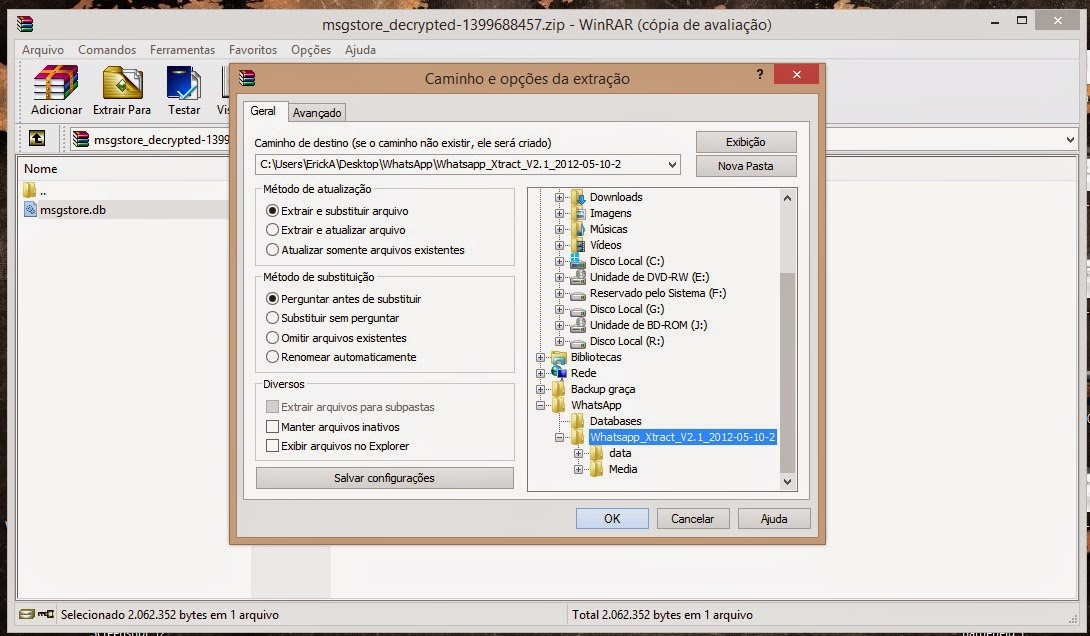
6 - Now extract the file from step 3 msgstore_decrypted on the desktop, copy and paste it on WhatsApp folder -> Whatsapp_Xtract_V2.1_2012-05-10-2 and replace the file


7 - Replace the WhatsApp folder -> Whatsapp_Xtract_V2.1_2012-05-10-2 from step 5 and
look for msgstore.dll file, drag it onto the whatsapp_xtract_drag'n'drop_database file (s) _here


After you drag it will create a file called msgstore.db.html the folder and ask you to press any key at the command prompt to continue ...
Pressing any key it will open in your default browser displaying the file msgstore.db.html all conversations, dates, numbers, etc...


Note: In step 2 print shows the crypt 7 but the crypt is correct 5!


Disclaimer: This tutorial is educational purpose only. HOC is not responsible for any kind of illegal activities. We believe in Security.

Posted By Krribss01:04

TOP 10 UNKNOWN FACEBOOK TIPS AND TRICKS

Filled under: ,

Facebook-Tricks-Tips-and-Hacks-2015
 Here we are going to share the top 10 unkown facebook tips and tricks.Do you surf facebook for hours? And would like to have some additional functions to your tiny world of friends? Well, if yes then you are at the right place. In our today’s article we would be covering few of the best tricks that will make your facebook lot more efficient and joyous. So, let’s then get started:


1. How to type colorful text for your status or chat
Want to impress your friends with something out of the box? If yes then follow our next steps. For typing any form of text in colorful way just paste following script for each letter:
[[107015582669715]] = A [[116067591741123]] = B [[115602405121532]] = C [[112542438763744]] = D [[115430438474268]] = E [[109225112442557]] = F [[111532845537326]] = G [[111356865552629]] = H [[109294689102123]] = I [[126362660720793]] = J [[116651741681944]] = K [[115807951764667]] = L [[106596672714242]] = M [[108634132504932]] = N [[116564658357124]] = O [[111669128857397]] = P [[107061805996548]] = Q [[106699962703083]] = R [[115927268419031]] = S [[112669162092780]] = T [[108983579135532]] = U [[107023745999320]] = V [[106678406038354]] = W [[116740548336581]] = X [[112416755444217]] = Y [[165724910215]] = Z
colorful-facebook-status-trick
2. Creating your own chat
Want to chat with your friend in a different way? Well, you can if you want to. We have a trick by which you talk via pictures. You don’t need to upload them need to type them. For instance you want to show something related to mr.zuck, one of your friends, so, can show his profile pictures and type something with it. Just type the username in this way [[Zuck]] and profile picture would be sent in the chat.
create-your-own-facebook-chat
3. How to upload your pictures from flickr to Facebook
If you have some albums on flickr and want to share them over facebook then your problem would be solved now. You should download flikr2facebook, for this transfer this program will automatically transfer all the albums or photos you want to transfer.
flickr2facebook 4. Scheduling facebook messages
If you are using more than one messengers at a time or want to schedule your facebook messages then you should click here, you would here find a program for scheduling all you message at a single time. It’s fantastic software for people who want to deal people talking from more than one messenger.
sendible
5. How to hide your facebook status from the friends you want
For hiding your status you need to need to change your privacy settings for this you will first go to privacy setting and from these go to profile tab. There you should go for status update setting there a page will open and you can under customize you can name the person you want to hide your status from.
hide-your-facebook-status
6. Removing unwanted ads on Facebook
If you want to get rid of ridiculous advertisement on facebook, then you should try Facebookcleaner it removes all the unwanted advertisements which makes your browser slow and makes the browsing faster too.
Remove Facebook ads trick
7. Access your facebook account from your desktop
Don’t have time to visit facebook regularly now? Now get your facebook chatting on your desktop simply download Gabtastik and you can chat from your desktop with your friends.
gabtastik-script-fcebook
8. How to create Quiz on Facebook
Have any question in your mind? Want to know it from your friend via quiz? Then there is no better place then facebook by going to LOLapps you can get a free quiz generator and have fun with your facebook friends.
Facebook-quiz-creating-tricks
9. How to display offline status to some of your friends
Don’t want to talk to some of your friends while remaining online? Well, you can do it now, it simple to do……….. Just go to your chat box and find a star there click it and go to advanced settings here you in the first write the profile names of the people whom you want to display offline status. As you write the names you would be shown offline in there chat box and originally you would remain online.
10. How to set your status remaining online on firefox
Using multiple social network and don’t have time to set the status regularly then useFireStatus, you can easily set your status with one button click to the leading social media sites. This will bring more efficiency and joy to your browsing experience.Firefox-status-facebook
So what are you waiting for, try these tricks incase they are new for you and enjoy :D

Posted By Krribss16:02

How to Easily Identify Font Used in any Image or Photo

Filled under: ,


 Today we will learn how to identify Which Font Is used in any Image or Photo that you Find on Internet. Many a times what happens is we come accross beautiful Images with Awesome Text on it. But We can't Identify what font is used to write that text. Or if you are into Graphic designing and all that stuff then this is a tailor made post for you.

To identify the font that is used to write on any photo, we will be using a web based tool. Yes thats right, A web based tool that Analyzes your Image that you upload
 and gives you output of what Font is used when creating the photo. So let us see how it is done.

How to Identify Font Used in any Image or Photo


So we will be using a Web based online tool called What Font is which i recently used to identify one of the font used in a Picture, So no more Guessing the Font name.

Step 1: As said earlier we will be Using a Web based tool which is What Font is. The link to the Website is http://www.whatfontis.com , So first Open it in a new tab and continue Reading.

Step 2: As you scroll down on the page, you’ll find “Browse” if you want to upload the image directly from your computer. Alternatively, you can just paste the URL of the image on the field provided. Just keep in mind that your image must be saved in JPEG (.jpeg, .jpg), GIF (.gif) or PNG (.png) format or else, it will be rejected.
Step 3: After uploading the image, select whether the background color is lighter or darker than the character colors. If you want more advanced options such as the option to display all fonts (whether free or not).

Step 4: After you’re done, just click “Continue” and wait while your image is being processed.
If the image is too complex for the tool to analyze, it will refer you to edit the font using an online image editor. 

Step 5: You will then be asked to select at least 4 to 10 characters out of the font before submitting it again. To refrain from getting this message, make sure that you’re submitting an image with a text written in just one line.

Step 6: If the online tool succeeds in identifying the image, you will be asked to enter the black characters in the empty text boxes. Just click “Continue” once you’re done.

So that’s it. The online tool will display a list of the font families that are identical to the font used in the image. The first result is usually the one that closely resembles the font that you want.

Posted By Krribss00:59

How to Add New Start Menu to Windows 7 & 8

Filled under: , ,

Do you wish to have a New start menu Which is not Same Boring that Every Windows User Uses ?
Then Here in this tutorial i will show you Two Great tools that will allow you to Add awesome new Start Menu. You can not just add new style Start menu but also can have your Programs and other awesome features.

The Best part is that these two tools works in both windows 7 and windows 8. So if you are using Windows 8 and missing the Start Button or menu right on the Desktop then Try these tools that you will like for sure. So let us see how to Get new Start Menu to Windows 7 and 8.

Adding New Start Menu to Windows 7/8

There are two Tools that i want to share today, 1 is available for absolutely free and other one have a free version which is awesome but you can also get the paid version if you dearly like it.

1: Start Menu Reviver:

This is one of the great tool that i am going to talk about. I recently Stumbled to This and i found it awesome and so wanted to let the visitors know about it too. You will get your new Start Menu just like the above picture.


Step 1: first of all Download Start Menu Reviver from HERE

Step 2: Install it and then Click on Start To see your new Menu.

You can add more programs to start menu just by Right Clicking and then Selecting Add tiles. There is much more to Explore and many more Features with it. Enjoy and play around it.
2. Start Menu X:

The 2nd tool that i want to Write is Start Menu X, This is a very popular tool and used by many many people.Start Menu X is available for Free and also Paid. The Free version is as good as the Paid one. You can download it for free from HERE and then Buy it if you like and to Support the Developer.

There is a Video and tutorials on how to Use and how your Start menu will actually look like on thier Official Site. Start Menu X works on Both Windows 7 and Windows 8. So again if you are a Win 8 User and missing the Start Menu, this is the tool that you want to download and use inorder to get it back.

So this is to it. These Tools are pretty helpful to Customize Start Menu in Windows and give it a whole new look. Do you use any other tool and want to share with us ? Let us know in Comments.

Posted By Krribss11:53